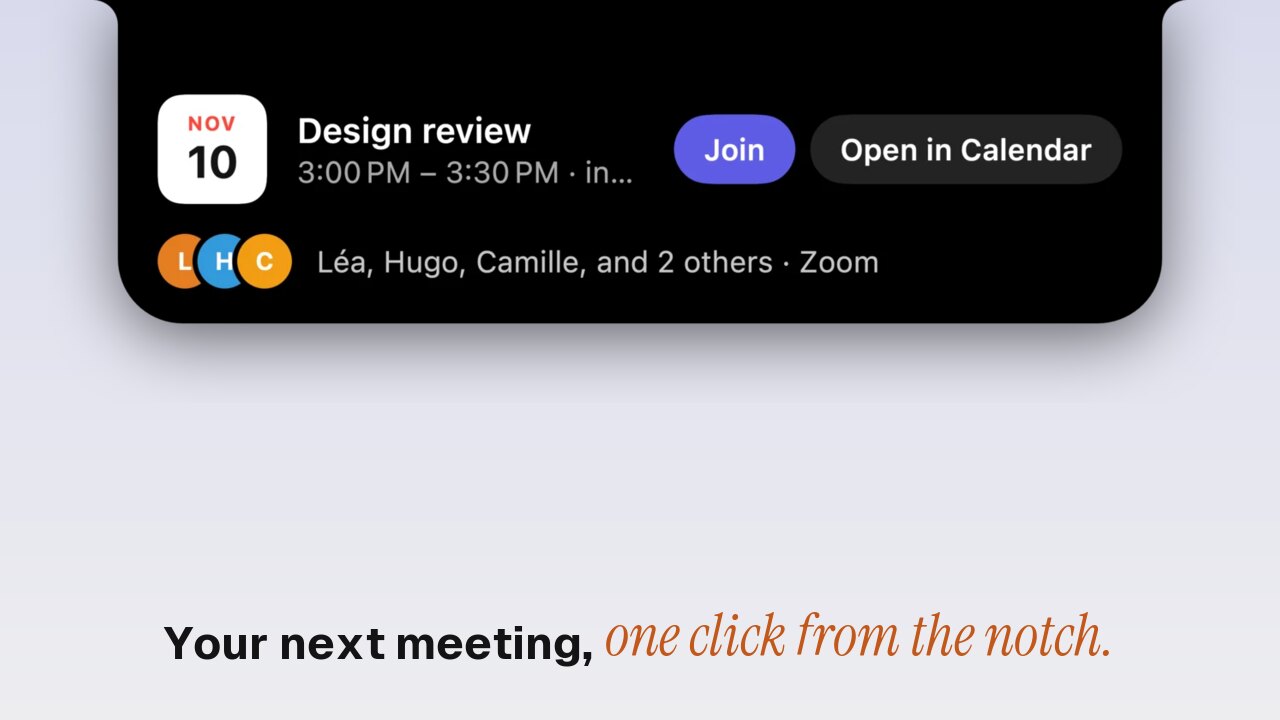
Each meeting app has its own mute shortcut, and most of them work only when the app is in front: ⇧⌘A in Zoom, ⇧⌘M in Teams, ⌘D in Google Meet. Zoom can make its shortcut global in its settings; the others can't. Toolnotch 2 gives you one way for all of them: your next meeting shows in the notch with « Join », and during the call the notch has its time, mute, camera and leave, with ⌃⌥M to mute from anywhere.
Option 1: each app's shortcuts
| App | Mute | Camera | Works from another app |
|---|---|---|---|
| Zoom | ⇧⌘A | ⇧⌘V | Yes, if you tick « Enable Global Shortcut » in Zoom › Settings › Keyboard Shortcuts |
| Microsoft Teams | ⇧⌘M | ⇧⌘O | No |
| Google Meet | ⌘D | ⌘E | No, the tab must be in front |
Free and built in. The catch is the moment you need it: someone asks you a question while you're in your notes, and you have to find the call's window first.
Option 2: the call in the notch
Toolnotch's live island shows what runs on your Mac around the notch. A call is one of those things.
Before the meeting
Toolnotch reads your macOS Calendar (iCloud, Google or Exchange accounts added in System Settings). 15 minutes before a meeting, it shows in the notch. From 5 minutes before, it has « Join » for Google Meet, Zoom, Teams and FaceTime links, and « Open in Calendar » for the rest. It stays until 5 minutes after the start, for the meetings you joined late.
During the call
While a call app uses the microphone, the notch shows how long you've been on. That works with Zoom, Teams, FaceTime, Slack, Discord, WhatsApp, Telegram, and calls in Chrome, Arc, Safari, Firefox, Brave and Edge. Rest the pointer on it for the card:
- Zoom, Teams, and Google Meet in Chrome, Brave, Edge or Safari: mute, camera and leave, plus ⌃⌥M to mute from any app.
- Other apps: the time and « Open », which brings the call's window to the front.
Which one to pick
| App shortcuts | Toolnotch | |
|---|---|---|
| Price | Free | $19.99 at most, once, with the other tools (pricing) |
| Reminder with « Join » | Your calendar's notification | In the notch, from 15 min before |
| One mute key for every app | No | ⌃⌥M (Zoom, Teams, Meet) |
| Mute from another app | Zoom only, once set | Yes |
| See that you're still on a call | No | Yes, with the time |
Limits
- Permissions. The calendar needs access to your calendars. Mute, camera and leave need Accessibility. Toolnotch asks only when you use them, and explains each one first.
- Calendar. Only accounts set up in macOS Calendar. A calendar you only open in a browser doesn't show.
- Buttons. FaceTime, Slack, Discord, WhatsApp, Telegram, Firefox and Arc calls show the time and « Open », without mute or camera buttons.
Setting it up
- Download Toolnotch from toolnotch.app and open it. It runs on macOS 15 Sequoia or later.
- In Settings › General › Daily Mac, turn on Calendar and Calls if they aren't, and allow what Toolnotch explains.
- Join your next call from the notch.
FAQ
How do I mute Zoom when it's not the active window?
In Zoom › Settings › Keyboard Shortcuts, tick « Enable Global Shortcut » next to Mute/Unmute My Audio. Or use Toolnotch's ⌃⌥M, which works the same for Teams and Google Meet.
Does Toolnotch record or listen to my calls?
No. It sees which app uses the microphone, not what goes through it.
Can I see my next meeting without opening Calendar?
Yes. With Toolnotch, it shows in the notch 15 minutes before it starts.